
| |
|
These instructions will walk you through
how to change an existing email account in Microsoft
Outlook Express to be able to send and receive email when you are using
Pacific Online's DSL. |
|

Open Outlook Express |
|
|
NOTE:
If you do not have an email account setup, go back to the main
support page and choose the appropriate
link for setting up your email account based upon the email program
you have.
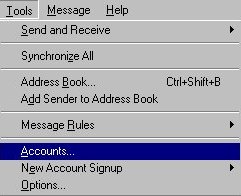
Step 1 Go to the Tools Pull down menu at the top
of our Outlook Express screen and choose Accounts. |
|
|
|
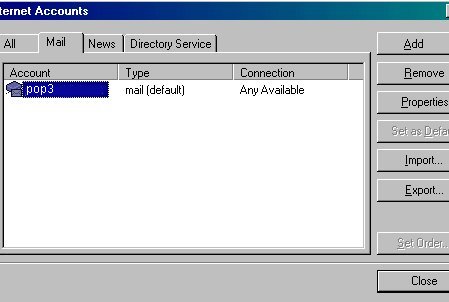
Step 2 - Click once on the mail tab
at the top of this screen that opens. Then click once under the word
Account in the white box on the left side of the line of text that
goes all the way across that white box. It will highlight blue as
shown in the screen shot below. Then simply click on the Properties
tab found in the middle right side of this screen. A new box will
load.
NOTE: If you do not have an
email account setup, go back to the main
support page and choose the appropriate link for setting up your
email account based upon the email program you have. |
 |
|
|
|
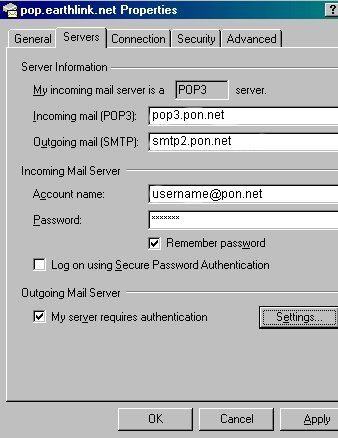
Step 3 - Fill in this box exactly
as you see below. NOTE: You MUST put a check mark in the bottom
check box line - the one that says "My Server Requires
Authentication. And then you MUST click on the Settings Tab. |
 |
|
|
|
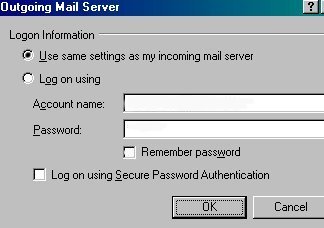
Step 4 - Fill out the next box exactly as you
see below. |
 |
|
|
|
Step 5 - Now click on Ok, you will
be taken back to the previous screen. Click Apply and then Ok. You
will be taken back to the first screen you started with, click on
Close, and then now you are ready to send or check your email. |